 COSM-GAME
 How to Set Up a Secondary Password for Ranked Mode in PUBG: BATTLEGROUNDS
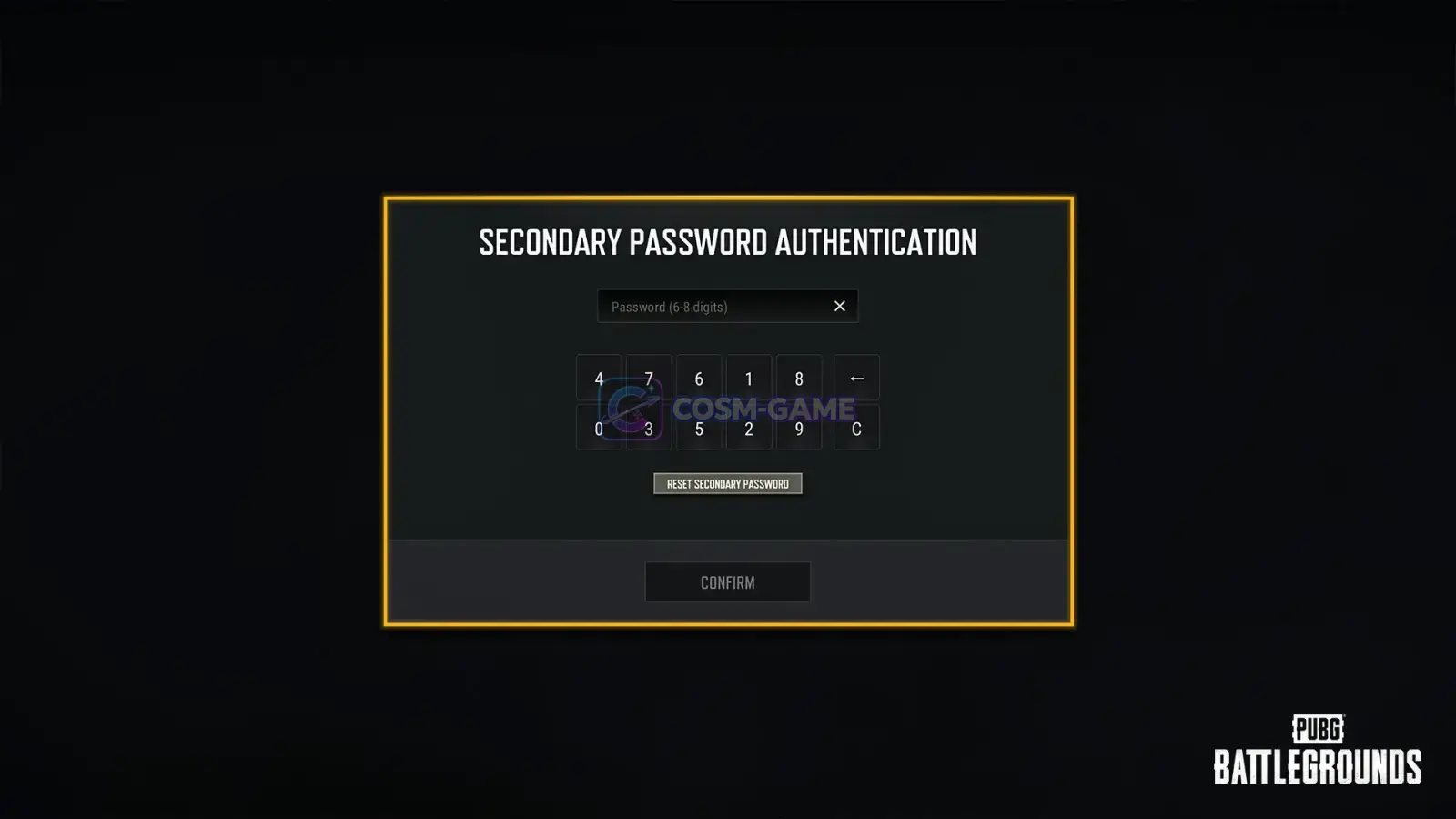
PUBG: BATTLEGROUNDS requires PC players to set and verify a secondary password before they can play Ranked Mode. Setup uses SMS authentication and a 6-8 digit numeric password, while the current in-game management shortcut is the secondary password icon in the top-right corner of the lobby.
Guide facts
On this page
The secondary password requirement applies to PC Ranked Mode
PUBG: BATTLEGROUNDS uses a secondary password as an additional account-security requirement for Ranked Mode on PC. The feature applies to all PC versions of the game and does not apply to PlayStation 5 or Xbox Series X/S.
You must complete secondary password setup before entering Ranked matches. Every member of a Ranked party must also have a secondary password enabled or the party will be blocked from Ranked matchmaking.
The secondary password is only one Ranked requirement. You also need BATTLEGROUNDS Plus and the required Survival Mastery level for Ranked access.
Important: PUBG's current BATTLEGROUNDS Plus page lists Survival Mastery level 80 as the requirement for entering Ranked matches.
Verify your mobile number with an SMS PIN
Agree to continue.Send.Confirm.Even if you completed Ranked SMS verification before the secondary password system was introduced, PUBG requires a new SMS verification during secondary password setup.
Create a 6-8 digit secondary password
After the phone number is verified, create the secondary password that PUBG will use for future lobby authentication.
Confirm.Confirm again.Choose a number you can remember without making it easy for another person to guess. The secondary password protects the game account beyond the normal platform login.
Restart the lobby to complete setup
After the password is confirmed, PUBG displays a message that the secondary password has been updated. Select Restart Lobby to finish the setup.
After the lobby restarts, the secondary password is active. You can then satisfy the secondary-password portion of the Ranked Mode requirements.
PUBG normally asks for the password every 24 hours
On the same PC, PUBG requires secondary password authentication once every 24 hours when entering the lobby. Enter your 6-8 digit password when the Secondary Password Authentication screen appears.
If you sign in from a different PC, PUBG requires secondary password authentication immediately, even if fewer than 24 hours have passed since your previous verification.
You must complete the authentication prompt to access the lobby. Leaving the prompt incomplete prevents you from entering the game normally.
Reset the password if you forget it
You can change a secondary password without removing the security feature. Use the secondary password icon in the top-right corner of the lobby and begin the reset process.
The reset process requires access to the mobile number registered during the original setup:
Send to receive a PIN.Confirm.Restart Lobby.PUBG provides the complete reset procedure on its official Secondary Password reset page.
Five incorrect attempts trigger the reset process
If you enter the secondary password incorrectly five or more times, PUBG directs you to reset it. SMS authentication is required before a new password can be registered.
If you no longer have access to the mobile number used for the original setup, or you believe the account has been compromised, contact PUBG Support rather than repeatedly attempting the password.
Note: There is no normal self-service option to disable the secondary password after setup. PUBG states that disabling it requires assistance from Customer Support.
If the SMS PIN does not arrive
- Check the country code and phone number. A wrong dialing prefix or mistyped number prevents delivery.
- Check SMS blocking. International messages may be blocked by your device or mobile carrier, or moved into a spam or junk folder.
- Restart the phone. PUBG recommends restarting the device before requesting another PIN if messages are not arriving.
- Do not use a virtual number or landline. PUBG specifically tells players to use a supported mobile number.
- Use the newest PIN. If you requested several codes, older PIN messages can become invalid. Enter the most recently received code.
- Watch the request limit. PUBG allows up to 10 PIN requests before SMS sending is restricted for 24 hours.
If setup still does not work after these checks, use PUBG's official secondary password troubleshooting page and submit a support inquiry if necessary.
Trailer, screenshots, and media
FAQ
7 questionsYes. PC accounts must have a secondary password enabled to access Ranked Mode. If any member of a Ranked party has not set one, the party cannot enter Ranked matchmaking.
No. PUBG states that the secondary password feature applies to all PC platforms. The feature does not apply to the console versions.
Yes. PUBG requires SMS authentication again when setting up the secondary password, even if that phone number previously completed the older Ranked SMS verification.
The password must contain 6-8 digits. The same digit cannot be entered three or more times consecutively.
On the same PC, PUBG normally requires secondary password verification once every 24 hours when entering the lobby. Signing in from a different PC triggers verification immediately regardless of when you last authenticated.
After five or more incorrect attempts, PUBG directs you to the password reset process. Resetting the password requires SMS verification.
Check that the country code and mobile number are correct, make sure international SMS is not blocked, and do not use a virtual number or landline. PUBG limits PIN requests to 10 attempts, after which requests are restricted for 24 hours.